Before You Start
➡️ The APN only needs to be configured when the SIM card's APN is not included in the METOS APN database.
➡️ The list containing the APNs currently available in the METOS APN database is in the attachment below
To configure the APN on the iMETOS 3.3, you will need:
- Computer
- USB cable Mini B
- Jumper
- Your station is running with the latest firmware (recommendation)
- The battery is charged to approximately 6.5V
- Physical access to the station
Step 1. Download and install the latest release of the PI Service Terminal by clicking on THIS LINK.
➡️ In case you do not know how to install it, you may find THIS GUIDE useful.
Step 2. Launch PI Service Terminal.
Step 3. Unplug the battery and the solar panel.
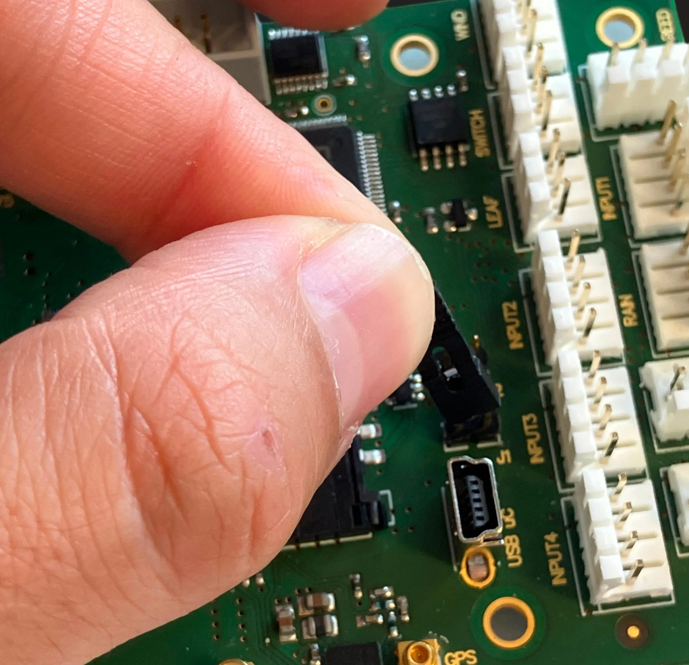
Step 4. Place the jumper on J1:
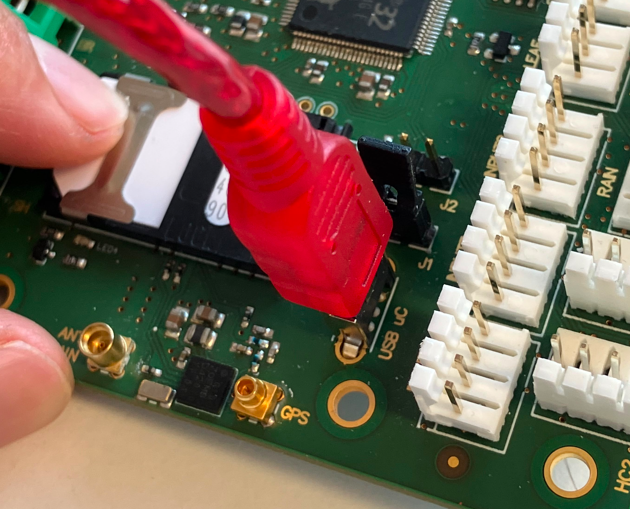
Step 5. Plug in the USB cable.
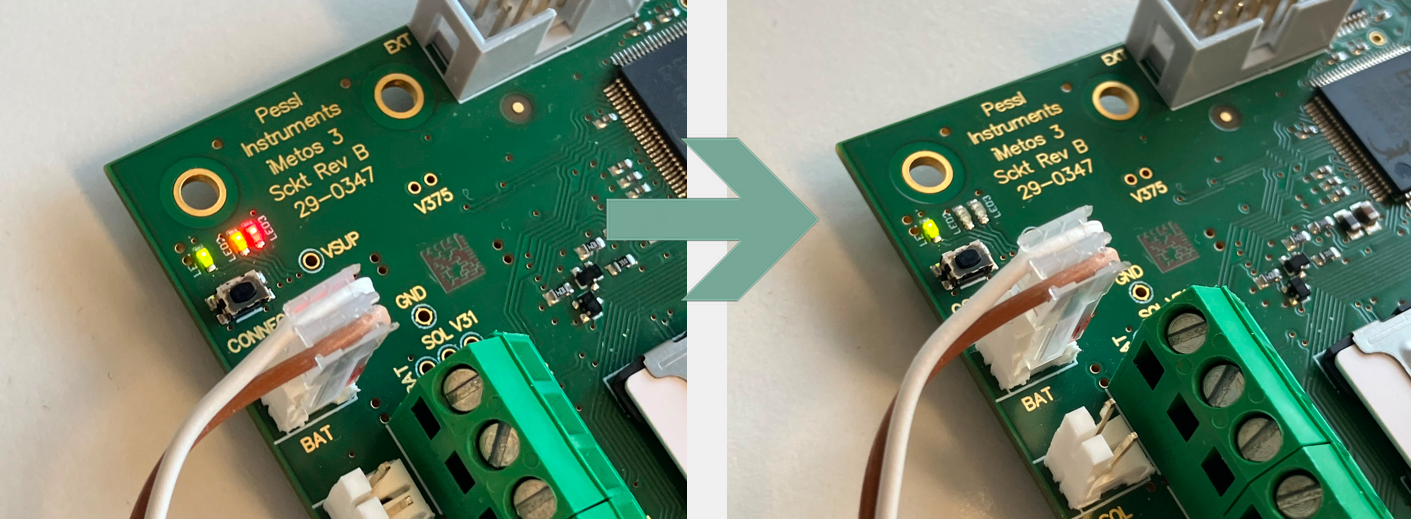
Step 6. Plug in the battery.
➡️ After plugging the battery, all three LEDs (green, yellow, and red) will turn on for 1-3 seconds and then turn off. After that, only the green LED should remain on, while the yellow LED blinks every 0.5 seconds.
➡️ The green LED indicates that the USB is connected.
Step 7. On PI Service Terminal, make sure a COM port has appeared and click to "Connect".
Step 8. (If the menu 1-2-3 is not shown), press "space" to show it and press (3) for MODEM:
========================================================================================
USER: \ MAIN MENU
========================================================================================

(1)     SYSTEM
(2)     SENSORS
(3)     MODEM
Step 9. Press (1) for MODEM SETTINGS:
========================================================================================
USER: \ MAIN MENU \ MODEM
========================================================================================

(1)     MODEM SETTINGS
(2)     SEND STATION DATA
(3)     DISABLE GPS
(4)     ENABLE GPS
(5)     GET GPS
(6)     GET CONF SMS
(7)     Download FW
(8)     Download APN list
(ESC)   BACK
Step 10. Press 5 for APN OF CUSTOMER:
========================================================================================
USER: \ MAIN MENU \ MODEM \ MODEM SETTINGS
========================================================================================

(1)     GET MODEM INFO
(2)     SEND IDENTIFICATION SMS
(3)     UNLOCK SIM CARD (PIN CODE)
(4)     SIGNAL QUALITY GRAPH
(5)     APN OF CUSTOMER
(6)     SERVER REDIRECTION
(7)     DELETE ALL SMS
(8)     MODEM FOTA
(A)     Check available APNs
(ESC)   BACK
Step 11. Press I to INSERT NEW APN:
18/08/2026 18:10:44 >> Chosen function: APN OF CUSTOMER

========================================================================================
USER: \ MAIN MENU \ MODEM \ MODEM SETTINGS \ APN OF CUSTOMER
========================================================================================

USER APN SETTINGS:
------------------
        User APN Country:       "Austria"
        User APN MCC:           "901"
        User APN MNC:           "28"
        User APN Name:          "lpwa.vodafone.iot"
        User APN User Name:     ""
        User APN Password:      ""

CHOOSE THE ACTION:
------------------
(I)     INSERT NEW APN ACCESS
(D)     DELETE DEFINED USER APN
(ESC)   BACK
Step 12. Insert the required information:
========================================================================================
USER: \ MAIN MENU \ MODEM \ MODEM SETTINGS \ APN OF CUSTOMER \ INSERT NEW APN ACCESS
========================================================================================

SIM CARD INFO:
--------------
        MCC of inserted SIM: 295
        MNC of inserted SIM: 05

        --------------------------------------------------------------------------------
        Define items of APN access according instructions!

        (Enter) <- confirm APN item
        (Esc)   <- cancel & exit from this menu item (without save)
        --------------------------------------------------------------------------------

CREATE NEW APN:
---------------

        Write new country name:         Austria
        Write new MCC:                  295
        Write new MNC:                  05
        Write new APN access:           metos.at
        Write new APN user name:        metos
        Write new APN password:         metos

        -- New APN saved in system --


        -- Enabled use of APN in communication --
⚠️ It is very important that the MCC and MNC correspond to the MCC and MNC of the SIM card.
➡️ The MCC and MNC of the SIM is shown under SIM CARD INFO in the terminal.
CONGRATULATIONS!
The APN has successfully been updated.
➡️ To test a data transmission. can back to (3) MODEM and run the option (2) SEND STATION DATA.
Need Help?
If you encounter issues during this process or have questions about the information described in this page, please SUBMIT A TICKET to the METOS Support Center and include this log.
Was this article helpful?
That’s Great!
Thank you for your feedback
Sorry! We couldn't be helpful
Thank you for your feedback
Feedback sent
We appreciate your effort and will try to fix the article